Remove image backgrounds
Keep the subject and download a transparent PNG.
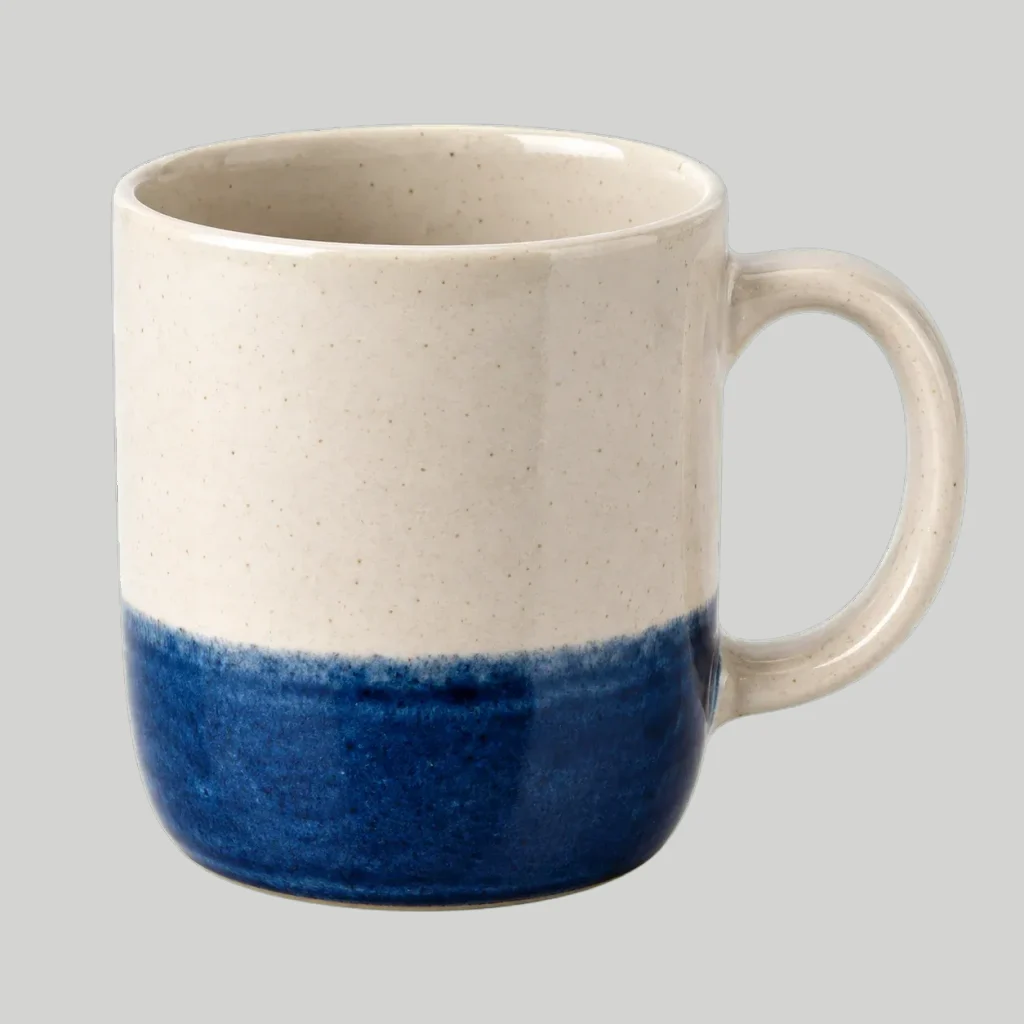
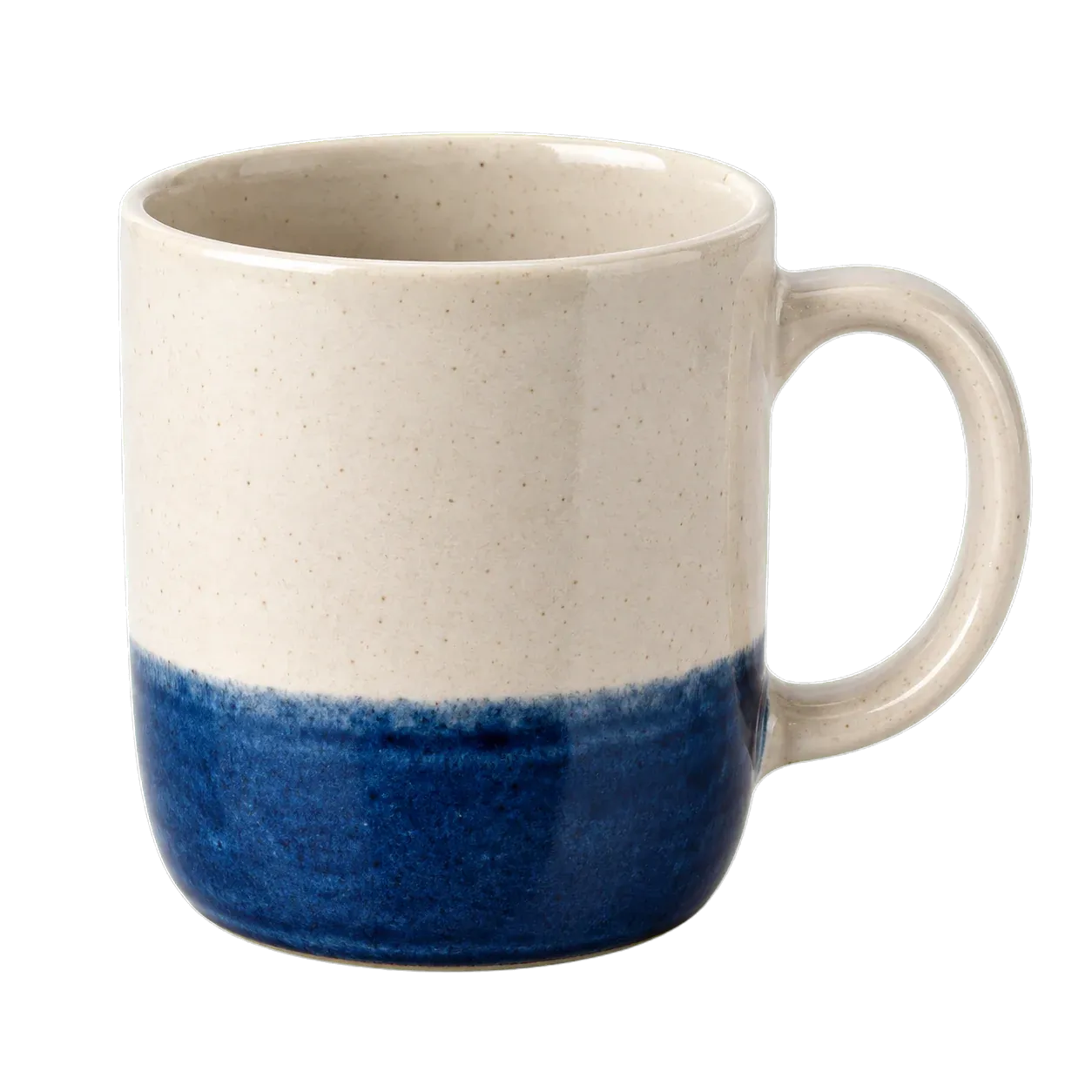
Keep the subject. Change where it belongs.
A transparent cutout separates the object from its original surroundings. Use it in a product layout, a profile design or a new composition without repainting the subject.
When a cutout is useful
- Product layouts
- Isolate an item for a catalog, slide or product card. Keep small openings, handles and the full silhouette in view.
- Portrait designs
- Separate a person from the scene for a profile layout. Loose hair and soft clothing edges need more attention than a hard-edged object.
- Layered compositions
- Place the PNG over another background in your design app. Transparency removes the surroundings; it does not generate a replacement scene.
From photo to transparent PNG
- 1
Upload a clear subject
Use one image with the whole subject visible. A subject cut off at the frame cannot be made complete by removing the background.
- 2
Remove the background
Review the quoted credits and process the image. No text instruction or manual selection is needed for this tool.
- 3
Compare and download
Switch between Original and Result, then download PNG. Use the saved result in Upscale if you need a larger cutout.
Give the edges room
Separate subject and background
Use the clearest original available. Blur and similar foreground/background colors make the boundary harder to distinguish.
Keep delicate details visible
Hair, spokes and small gaps are part of the subject. Glass, smoke and other partly transparent materials may not separate cleanly.
Before you use the cutout
- Look around the outline for missing parts or leftover background.
- Check openings such as the space inside a handle.
- Place the downloaded PNG over a contrasting background to see its transparency.
Questions about this tool
Will the download keep transparency?
The tool delivers PNG so transparency can be preserved. The checkerboard is only a preview background; judge the downloaded file over another background.
Can I choose a new background here?
No. This tool removes the background. For a new scene, use an image-editing workflow or place the transparent PNG into your own design.
Can I remove one object instead of the background?
Use Image editing and describe the object to remove and what should replace it. Check the full result for unintended changes.
Does it work on fine hair or glass?
These are difficult boundaries. Start with a clear image and inspect the output; a clean result is not guaranteed for every material or background.
Can I enlarge the transparent result?
Yes, use the saved result in Upscale. Transparent images use the separate fixed 4x path with PNG output.
Which files can I upload?
Sign in and upload one PNG, JPG or WebP up to 4MB and 40 million pixels. Tool uploads keep the source pixel dimensions; transparent files and output limits depend on the tool.
When are credits used?
An available credit quote is required before processing. Starting a task reserves its quoted credits; failed tasks follow the existing refund flow. Opening a tool, adjusting settings or bringing in a saved image does not start a paid task.