Restore an old photo
Repair visible damage and compare the result with your original.
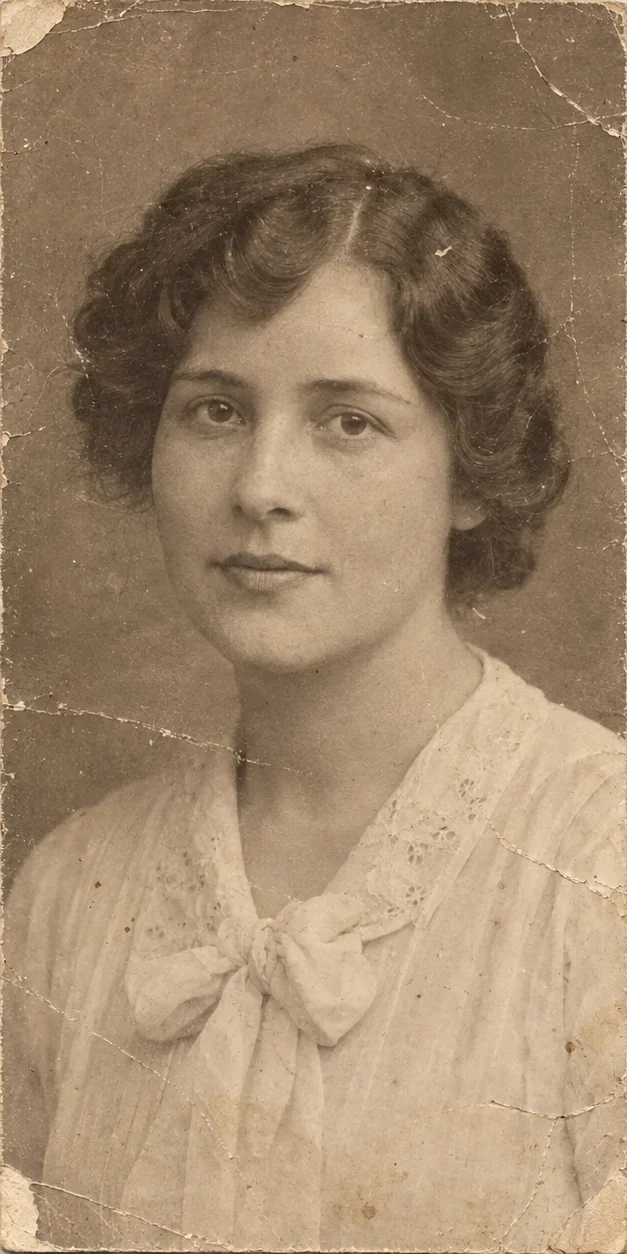
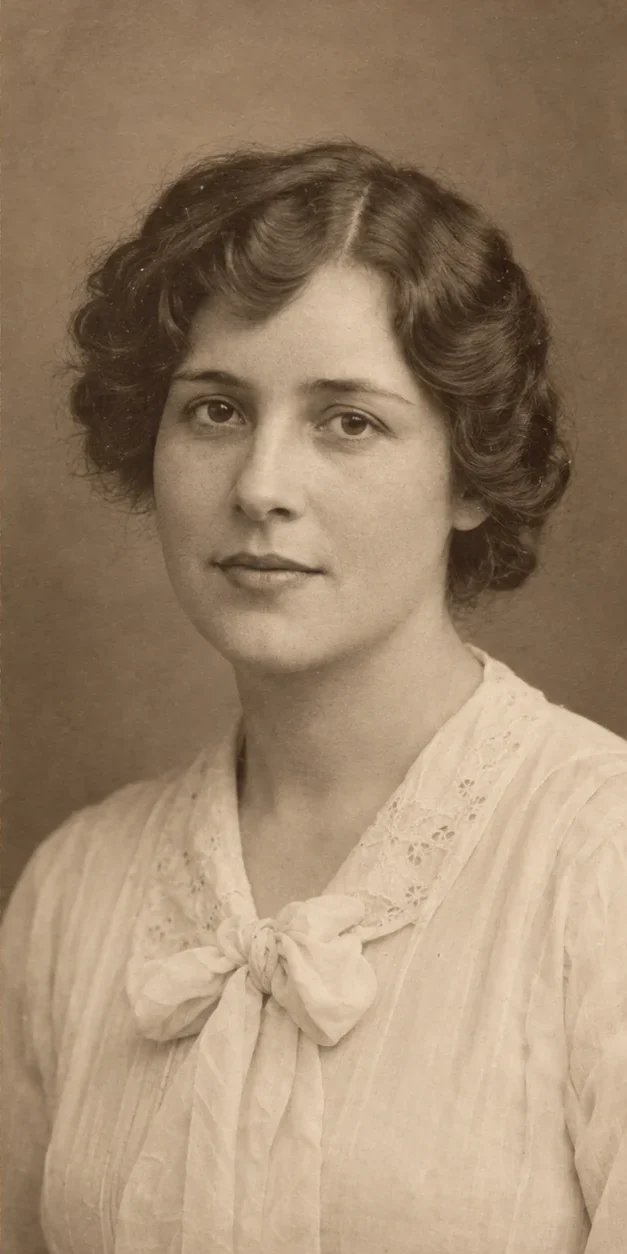
Repair wear without losing the photograph
Restoration is useful when damage distracts from an otherwise meaningful image. It creates a new version rather than replacing your original, so you can compare what changed.
Separate damage from missing information
- Scratches and surface marks
- Visible lines, specks and paper wear are candidates for repair. Marks that cross faces or text need careful comparison afterwards.
- Faded or uneven tones
- A scan can benefit from a clearer tonal balance. The tool does not provide a separate colorization or style control.
- Missing facial detail
- Severe damage may require the model to infer content. The result is an interpretation, not proof of how the person originally looked.
Keep an original and a restored version
- 1
Prepare a straight scan
Capture the whole photo with even lighting. Avoid glare, a tilted camera and a large border of the surrounding table.
- 2
Restore the photo
Upload the scan, review the credit quote and process it. This tool does not require a written prompt.
- 3
Compare before downloading
Switch between Original and Result. Keep the version that improves the damage without changing important features.
The scan matters
Capture real texture
Use the highest-quality scan you can fit within 4MB. Avoid pre-applied beauty filters or repeated JPEG compression.
Reduce glare first
A bright reflection can cover details the model cannot see. Recapture the photo under softer light before attempting restoration.
Preserve the details that matter
- Compare the face, age, expression and distinctive marks.
- Inspect handwriting, printed dates, jewelry and patterned clothing.
- Keep the original scan; a repaired image cannot establish historical accuracy.
Questions about this tool
Will it recover the exact original details?
No. The model may infer missing details. Keep the original and do not treat the restored version as evidence of the original scene.
Can it colorize a black-and-white photo?
This page has no dedicated colorization control. Its task is photo restoration; it does not promise historically accurate colors.
Can I restore only a small area?
This tool processes the photo as a whole. For a specific repair request, use Image editing and describe the change. It does not guarantee that other areas stay unchanged.
Should I restore or upscale first?
If visible damage is the main problem, start with restoration and inspect it before enlarging. Upscaling alone does not repair a crease or missing section.
Can I compare the result with my original?
Yes. The workspace keeps an Original/Result comparison for the completed task and delivers a separate download.
Which files can I upload?
Sign in and upload one PNG, JPG or WebP up to 4MB and 40 million pixels. Tool uploads keep the source pixel dimensions; transparent files and output limits depend on the tool.
When are credits used?
An available credit quote is required before processing. Starting a task reserves its quoted credits; failed tasks follow the existing refund flow. Opening a tool, adjusting settings or bringing in a saved image does not start a paid task.