Flux Kontext - Advanced Multi-Modal AI Image Generation at fluxcontext.orgFluxContext
  • Pricing
  1. HomeHome
  2. AI Image ModelsAI Image Models
  3. MiniMax H3 ImageMiniMax H3 Image

MiniMax H3 Image

MiniMax H3 Image edit and prompt creation workflows in FluxContext let you design character turnaround sheets with consistent facial expressions, compose 1 to 4 uploaded reference photos with natural lighting, or arrange overhead knolling grids and quoted poster headlines in JPEG or PNG.

MiniMax H3 Image Generator & Multi-Reference Editor

Create
History

Start with an idea

Describe what you want to create. Add a reference if you need one, then adjust the options below.

About this model

MiniMax H3 Image edit and prompt creation workflows in FluxContext let you design character turnaround sheets with consistent facial expressions, compose 1 to 4 uploaded reference photos with natural lighting, or arrange overhead knolling grids and quoted poster headlines in JPEG or PNG.

See What a Prompt Can Become

Find a visual direction, then make the prompt your own.

From a prompt

Design a Character Turnaround & Expression Sheet

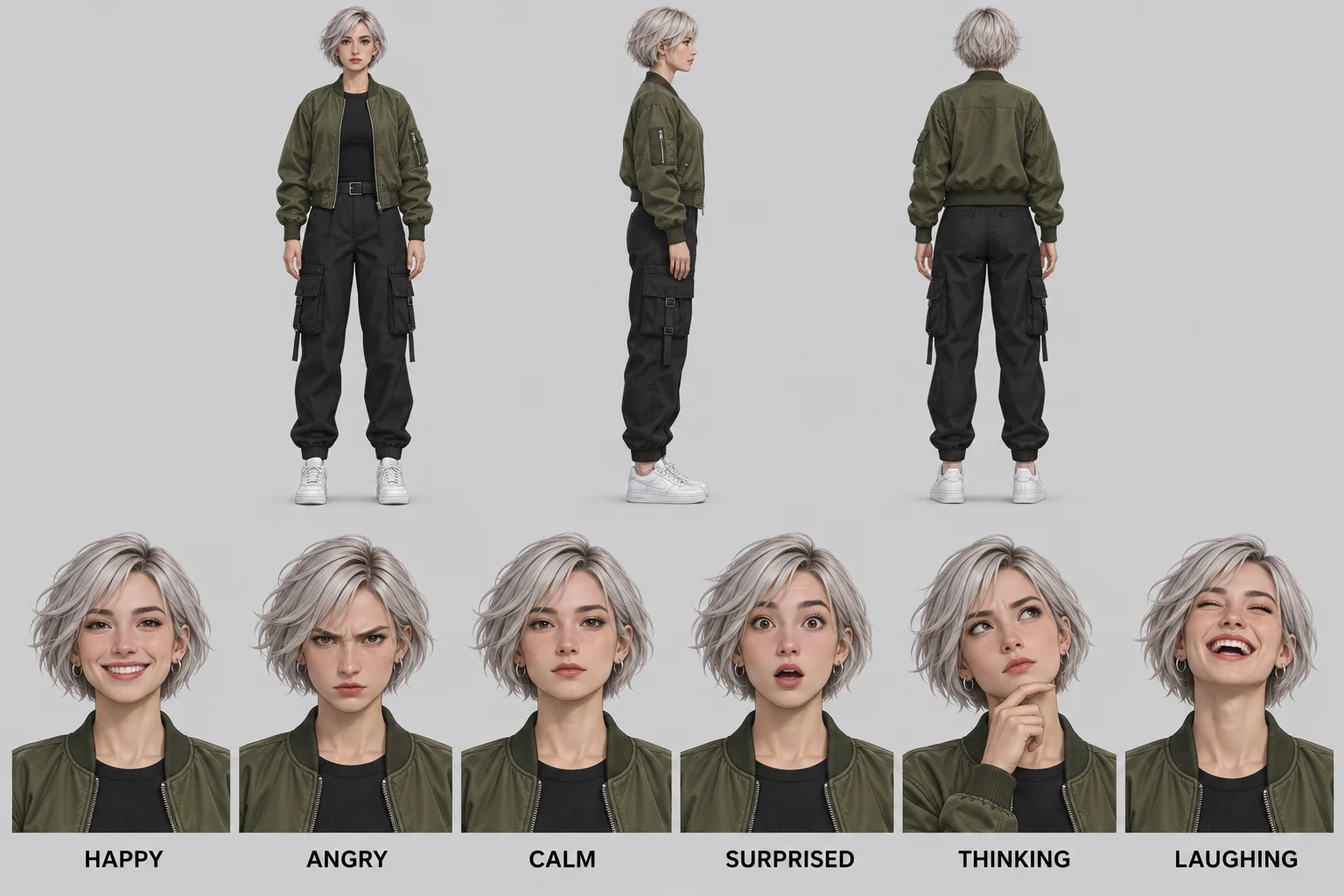
With MiniMax H3 Image, you can structure multi-angle character sheets in one detailed brief. Place front, side profile and back full-body views across the upper row and six labeled expression portraits below, keeping facial identity, silver hair texture, olive bomber jacket stitching and neutral studio lighting consistent across every panel.

Prompt to try

Create a character turnaround sheet on a light-gray studio backdrop. Upper row: front, side and back full-body views of a silver-haired woman in an olive bomber jacket and black cargo pants. Lower row: six close-up portraits of the same character labeled "HAPPY", "ANGRY", "CALM", "SURPRISED", "THINKING", "LAUGHING".

Start with a Practical Brief

Character Turnaround & Expression Sheet

List the upper full-body angles and lower quoted expression labels clearly.

Create a character turnaround sheet on a light-gray studio backdrop. Upper row: front, side and back full-body views of a silver-haired woman in an olive bomber jacket and black cargo pants. Lower row: six close-up portraits of the same character labeled "HAPPY", "ANGRY", "CALM", "SURPRISED", "THINKING", "LAUGHING".

Multi-Reference Room & Furniture Composition

Assign one role to each @image tag and specify the shared light direction.

In this MiniMax H3 Image edit, combine the cognac leather sofa from @image1, the walnut coffee table and terracotta vase from @image2, and the arched brass floor lamp from @image3 inside the sunlit loft from @image4. Match the window light, floor reflections and contact shadows.

Tips for Reviewing Your Image

  • Verify front, side and back proportions across the character turnaround sheet.
  • Check every quoted caption and expression label at full size.
  • Confirm contact shadows and light direction after a MiniMax H3 Image edit.

Model Specifications

Credit costs depend on the selected settings and reference inputs.

Quality levels
Low / Medium / High
Reference images
Up to 4
Base credits
30 credits
Images per generation
1

Credits by Settings and References

Each cell is the total for one image, not an additional reference charge. Reference counts within the same band have the same price.

SettingsGenerate · no referencesEdit · 1 reference imagesEdit · 2–4 reference images
Low quality25 credits35 credits65 credits
SettingsGenerate · no referencesEdit · 1 reference imagesEdit · 2–4 reference images
Medium quality30 credits50 credits75 credits
SettingsGenerate · no referencesEdit · 1 reference imagesEdit · 2–4 reference images
High quality60 credits100 credits125 credits

Editing uses automatic output sizing. The listed edit price includes this; it does not vary with the uploaded image dimensions.

Quality Tiers & Reference Framing Controls

Select Low, Medium or High quality for one JPEG or PNG output per request. Prompt-based creation offers five aspect presets—square, landscape, portrait, wide and tall—while every MiniMax H3 Image edit follows your primary source framing automatically so existing proportions stay intact.

MiniMax H3 Image Workflows & Capabilities

1–4 Photo Multi-Reference Composition

Upload up to four references in a MiniMax H3 Image edit and assign distinct roles with @image1 through @image4. Combine a hero subject, a piece of furniture, a fabric or wood texture and an interior backdrop while matching perspective and contact shadows.

Character Turnaround & Expression Sheets

Lay out full-body front, profile and back turnaround views alongside close-up expression studies with exact uppercase labels such as HAPPY, ANGRY, CALM, SURPRISED, THINKING and LAUGHING on a clean studio backdrop.

Quoted Poster Headlines & Editorial Layouts

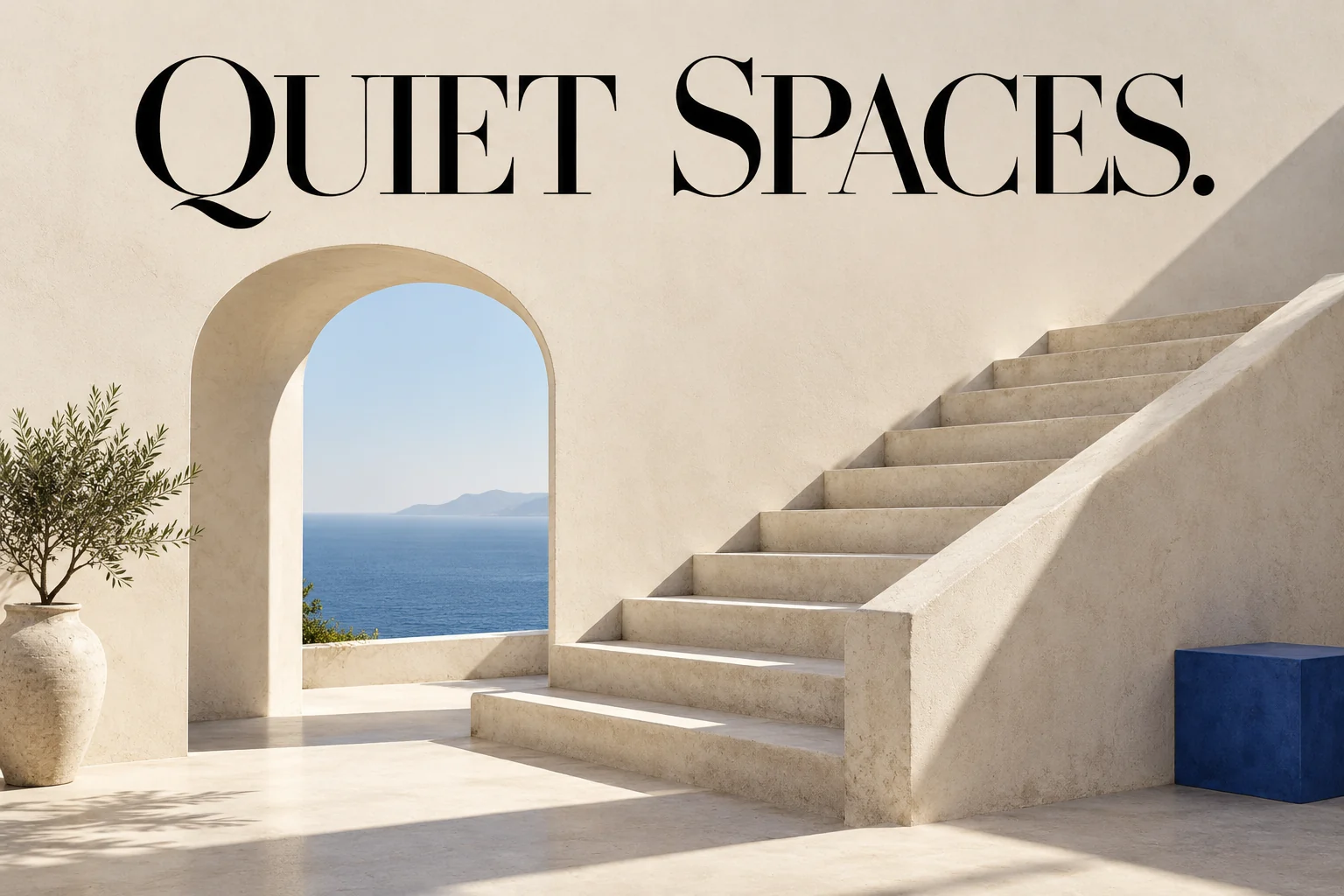
Enclose required headlines, mastheads or callout labels in quotation marks and specify top, center or bottom placement. Define generous margins around your subject so lettering remains legible before any follow-up edit.

Knolling & Flat-Lay Product Grids

Prompt overhead knolling arrangements that organize everyday carry gear, cosmetics, tools or apparel accessories at crisp 90-degree angles with even spacing, accurate surface reflections and consistent soft studio shadows.

Workspace Routing & Provider Documentation

  • OpenAI: GPT Image 2.6 Flare documentation

Compare Model Specifications

Compare the settings available for your next image.

SettingsMiniMax H3 ImageCurrent modelFlux.2 ProFlux.2 MaxFlux.2 FlexFlux.2 KleinFlux 3Seedream 5.0 LiteSeedream 5.0 ProNano Banana 2Nano Banana 2.1GPT Image 2.6GPT Image 2.5
Resolution tiersSource size when editingStandardStandardStandardStandard1K2K / 3K / 4K1K / 2K0.5K / 1K / 2K / 4K1K / 2K / 4KSource size when editingSource size when editing
Quality levelsLow / Medium / HighStandardStandardStandardStandardStandardStandardStandardStandardStandardLow / Medium / HighLow / Medium / High
Reference imagesUp to 4Up to 4Up to 4Up to 4Up to 4Up to 4Up to 4Up to 4Up to 4Up to 4Up to 4Up to 4
Images per generation111111111111
Base credits30 credits17 credits38 credits38 credits10 credits20 credits14 credits54 credits32 credits24 credits30 credits16 credits
Base credits by tierLow quality: 25 / Medium quality: 30 / High quality: 60Standard output: 17Standard output: 38Standard output: 38Standard output: 101K: 202K: 14 / 3K: 14 / 4K: 141K: 27 / 2K: 540.5K: 24 / 1K: 32 / 2K: 48 / 4K: 631K: 24 / 2K: 32 / 4K: 63Low quality: 25 / Medium quality: 30 / High quality: 60Low quality: 8 / Medium quality: 16 / High quality: 32

Credit costs depend on the selected settings and reference inputs.

Find the Model for Your Next Image

AI Image Models

Nano Banana 2.1

Visual layouts and reference editing in 1K–4K.

GPT Image 2.6

GPT Image 2.6 Flare for visual briefs and focused edits.

Questions About MiniMax H3 Image

Inputs, editing, and credits—before you start.

How Does MiniMax H3 Image Differ from the Video Workspace?

MiniMax H3 Image is the dedicated still-visual studio at /models/minimax-h3-image built for character turnaround sheets, overhead knolling grids, quoted poster typography and multi-reference MiniMax H3 Image edit workflows. The separate /models/minimax-h3 route is exclusively for motion and video clip generation.

How Do I Combine 1 to 4 Photos in a MiniMax H3 Image Edit?

Upload up to 4 reference files (JPG, PNG or WebP up to 4 MB each) and tag them as @image1 through @image4 in your prompt. State which slot provides the main subject, which supplies furniture or wardrobe pieces, and which defines the room environment and window lighting.

Which Quality Levels and Output Formats Are Available?

This workspace provides Low, Medium and High quality tiers, up to 4 reference inputs and single-file JPEG or PNG export. Reasoning effort is pinned at Low for predictable pricing; prompt generation uses five aspect presets while a MiniMax H3 Image edit matches your first uploaded source.

How Many Credits Does Each Request Use?

Creation from text starts at 25 credits on Low quality, with 30 credits for the default Medium tier and 60 credits for High. Running a MiniMax H3 Image edit adjusts the quote transparently based on your chosen quality tier and whether you attach 1 or 2–4 references.

Can I Run Follow-Up Edits or Animate a Delivered Result?

Yes. Click Edit on any delivered canvas to start a follow-up MiniMax H3 Image edit while keeping earlier versions in your personal history, or click Generate video to send the finished frame directly into the video studio as a starting keyframe.

Can I Try MiniMax H3 Image for Free?

This premium workspace requires signing in and enough credits for the quoted request. The 10 signup credits do not cover its lowest 25-credit tier; if you want to test basic prompt creation without paying, use the separate free FLUX.2 option.

How Do I Keep Identity and Details Consistent in a MiniMax H3 Image Edit?

Upload a sharp primary reference first, describe the single edit you want in plain language, and explicitly list the facial features, jacket colors, walnut wood grain or quoted poster words that must remain untouched during the MiniMax H3 Image edit.

Create Your Next Image with MiniMax H3 Image

Describe your idea and start creating.

Start creating
More links
FluxContext

Create images and videos with AI. Choose a model, prepare a frame, and bring it to life.

Create

  • Text to Image
  • Image to Image
  • Generate video
  • Your creations

Image tools

  • Remove background
  • Upscale image
  • Restore photo
  • Image to prompt
  • All image tools

Image models

  • All image models
  • FLUX 3
  • FLUX.2
  • Nano Banana 2
  • Seedream 5.0 Pro
  • Seedream 5.0 Lite
  • GPT Image 2.6
  • MiniMax H3 Image
  • GPT Image 2.5

Video models

  • All video models
  • MiniMax H3
  • Seedance 2.5
  • Kling 3.0
  • Veo 3.1 Fast
  • Gemini Omni Flash

Image templates

  • AI headshots
  • AI posters
  • Photo to sketch
  • AI outfit generator
  • Photo restoration template
  • All image templates

Video templates

  • All video templates
  • AI Hug
  • AI Pet Dance
  • Zombie Transformation
  • AI Anime Creator

Resources

  • AI Art Gallery
  • Pricing
  • Contact
  • FLUX model guide
  • Multi-reference guide
  • Kontext vs. FLUX.2

© 2026 • FluxContext. All rights reserved.

EnglishEspañol
  • Privacy Policy
  • Terms of Service
  • Refund Policy
ModelsToolsCreateTemplatesMe