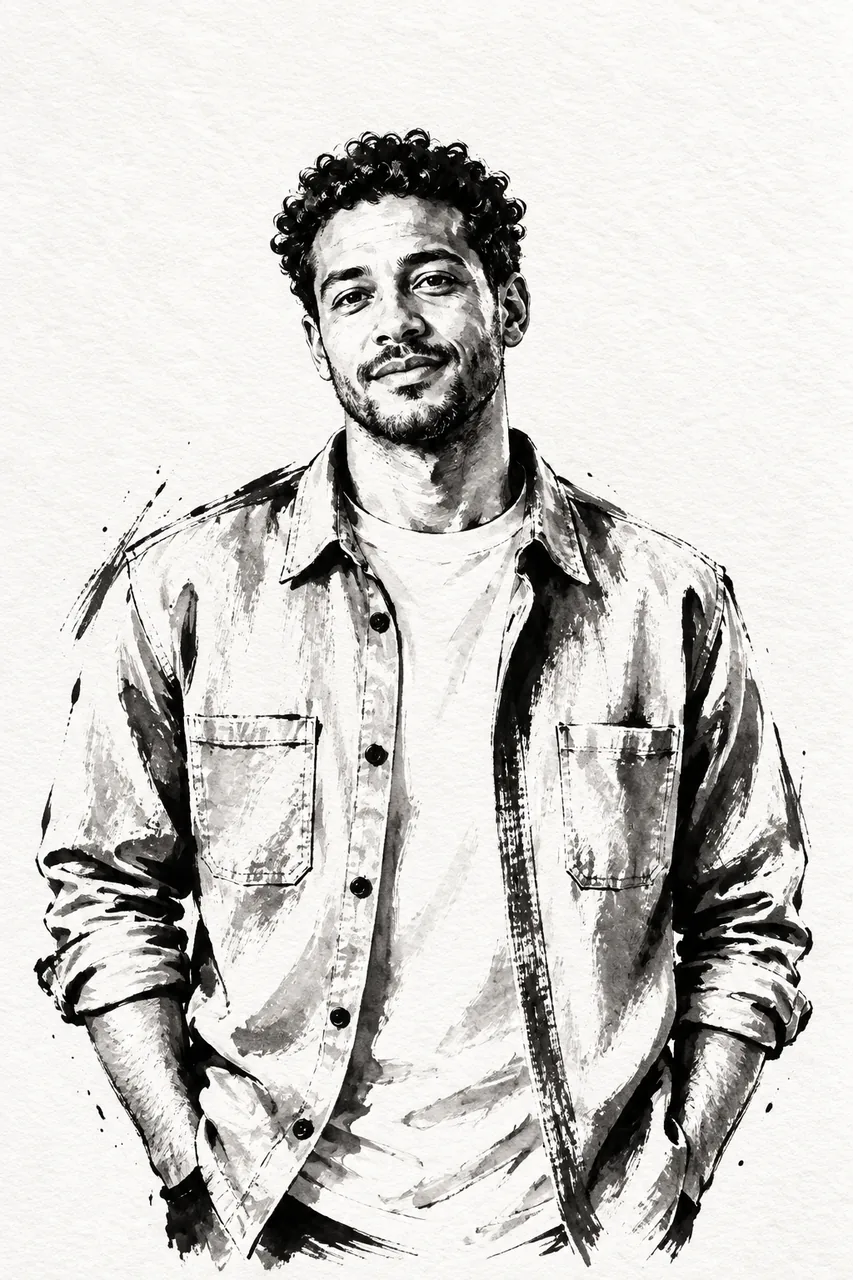
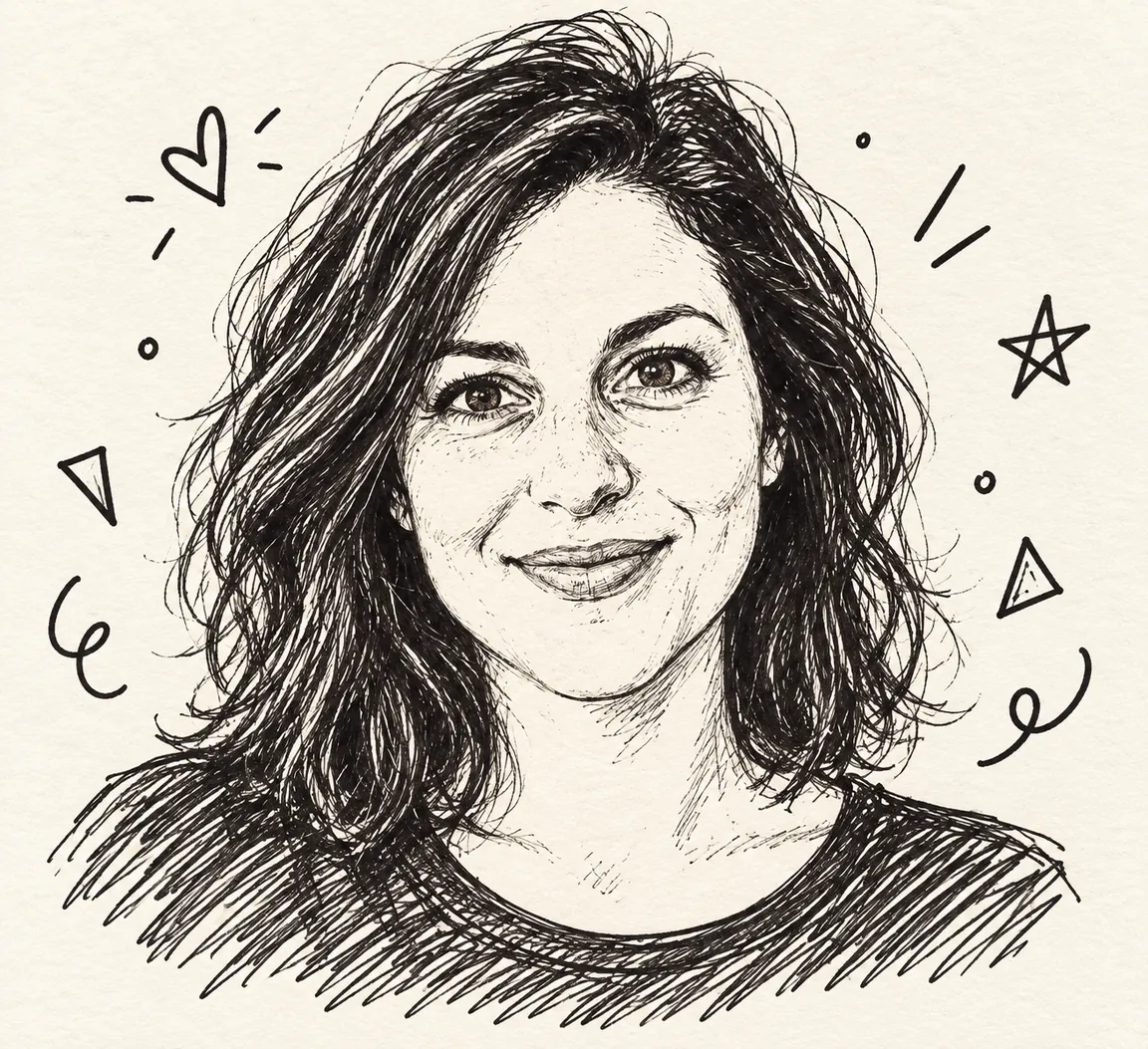
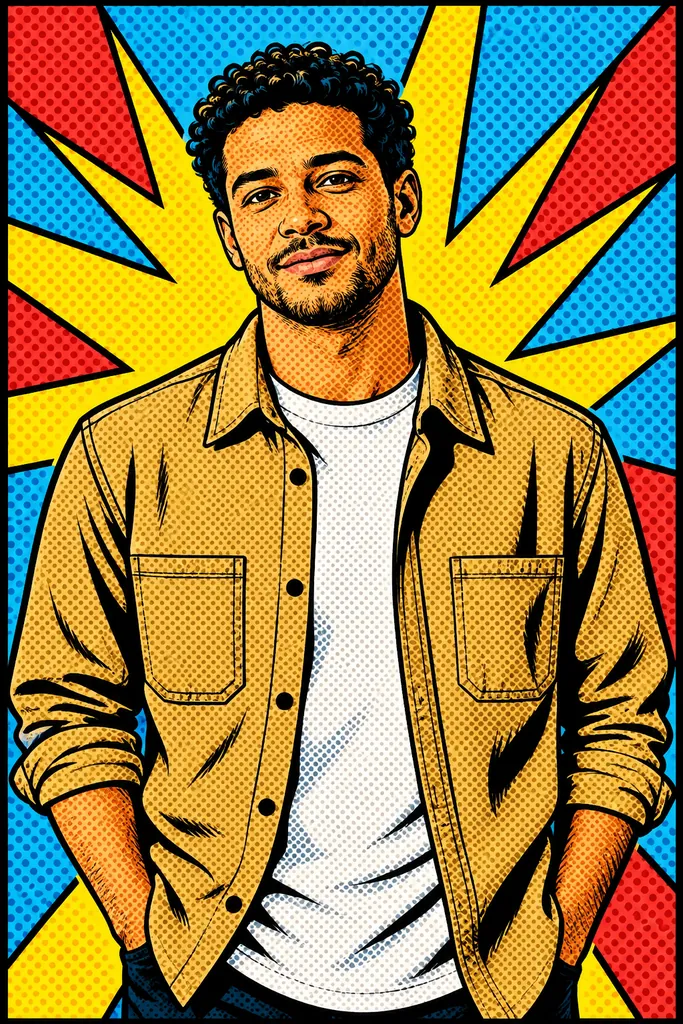
AI photo to sketch converter
Turn a photo into a pencil, charcoal or ink drawing while keeping its subject recognizable.
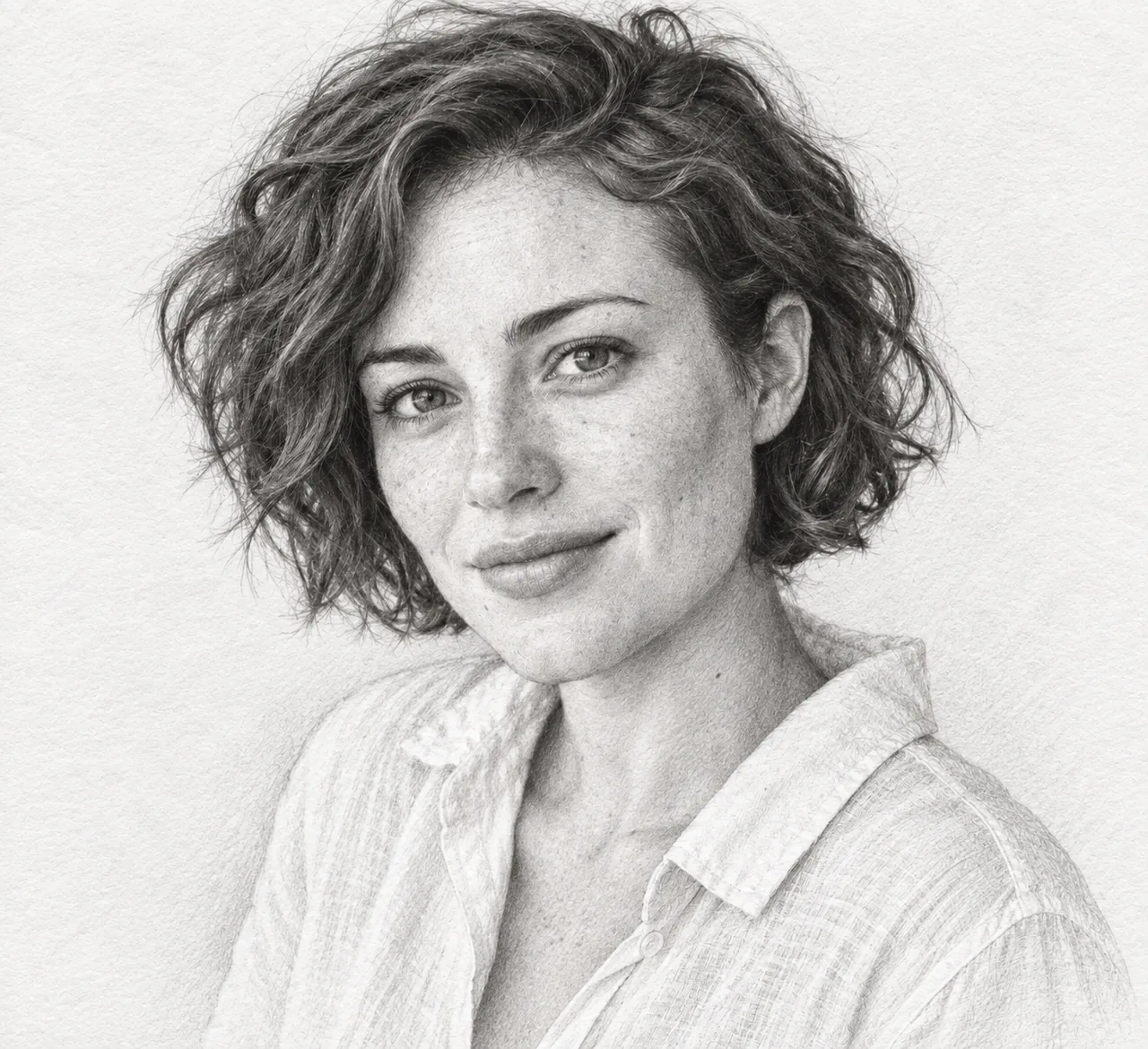
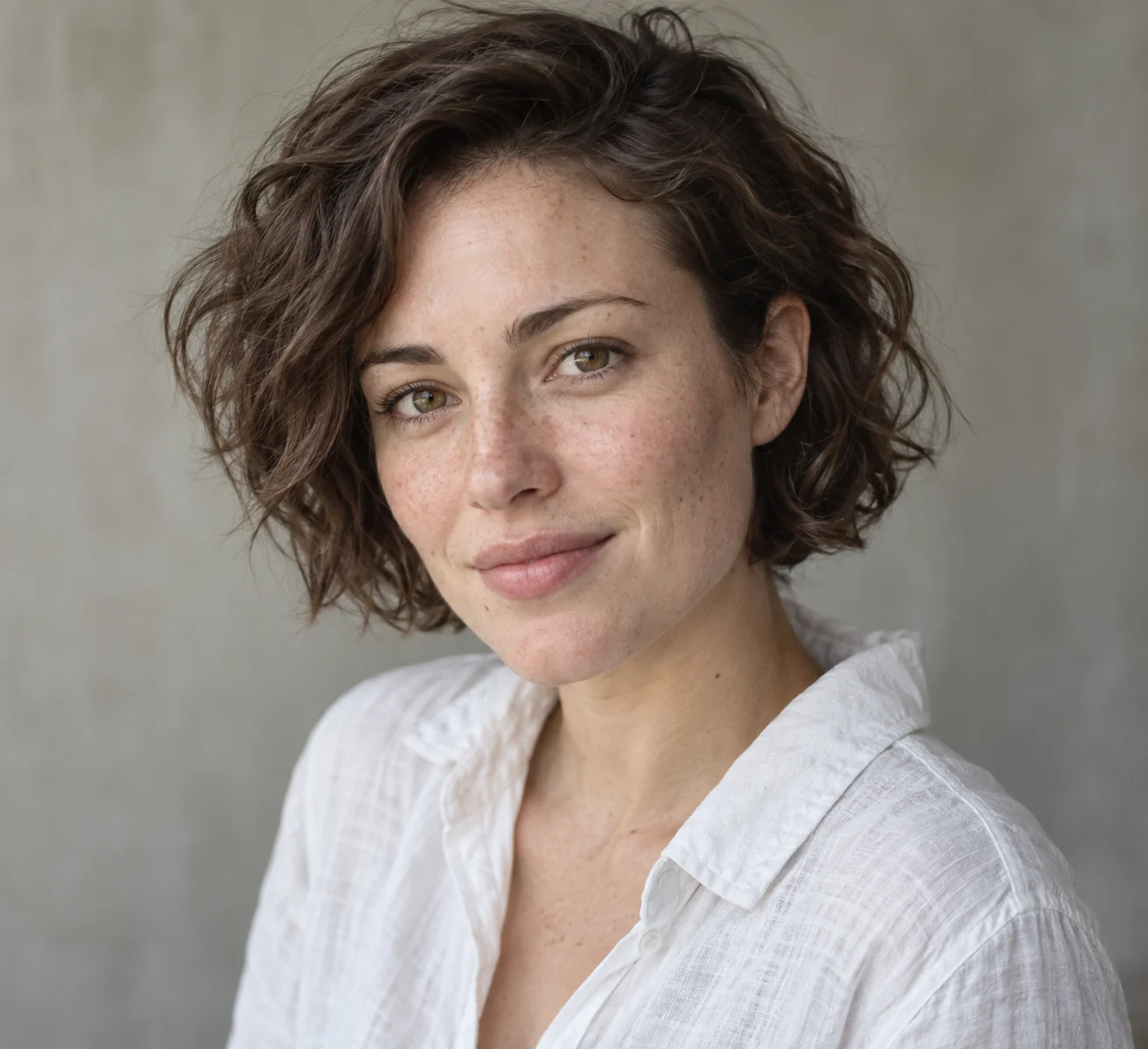
Keep the composition, change the medium
The example translates a portrait into a graphite-style drawing with visible strokes. Hair, facial proportions and the shirt remain recognizable without retaining photographic skin texture.
Choose the drawing medium
- Graphite pencil
- Fine strokes and tonal shading suit detailed portrait interpretation.
- Charcoal
- Softer marks and broader dark areas create a different texture.
- Ink line drawing
- Clean contours emphasize shapes rather than pencil shading.
Prepare a readable drawing reference
Separate the subject
Clear outlines help the drawing retain important features.
Choose the medium deliberately
Graphite is the default; switch to charcoal or ink before generating if you want those marks.
Review the sketch against the photo
- Check face proportions or the main object's outline.
- Look for intentional strokes rather than smeared detail.
- Inspect the background for invented signatures or writing.
Choosing a sketch treatment
Which photos can I turn into a sketch?
Use a portrait, pet, product or landscape photo with a clear subject. The template asks the model to preserve the composition while changing the medium.
Can I choose a drawing style?
Yes. Graphite pencil is selected by default; you can switch to charcoal or ink line drawing before generating.
Can I get editable pencil strokes from this converter?
The output is a raster image, not a layered drawing or vector file.
Does opening a template spend credits?
No. You only use credits when you generate an image. The Generate button shows the cost.