AI product photography generator
Create studio or lifestyle product photos from your own image.
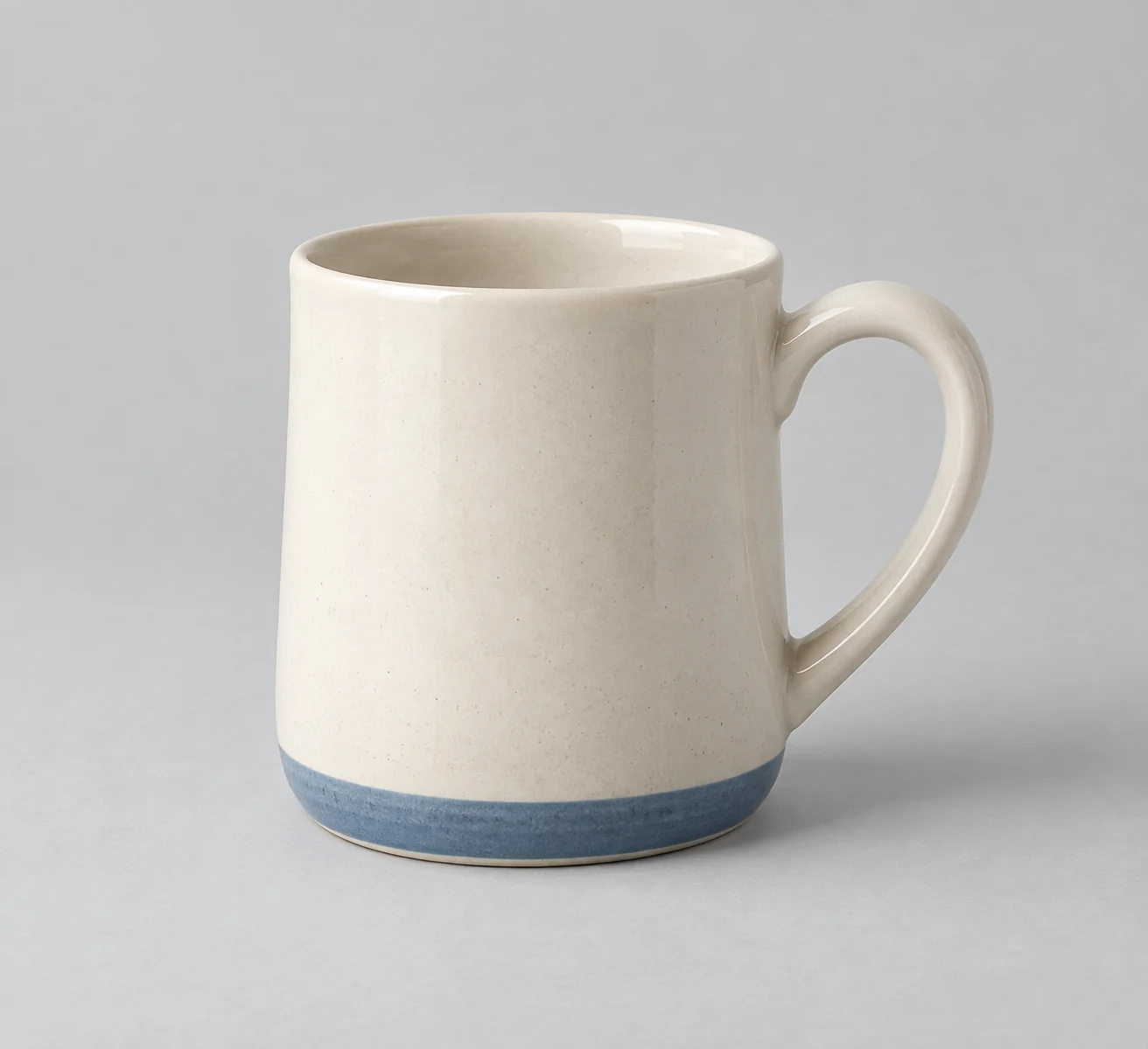
Change the setting while keeping the product credible
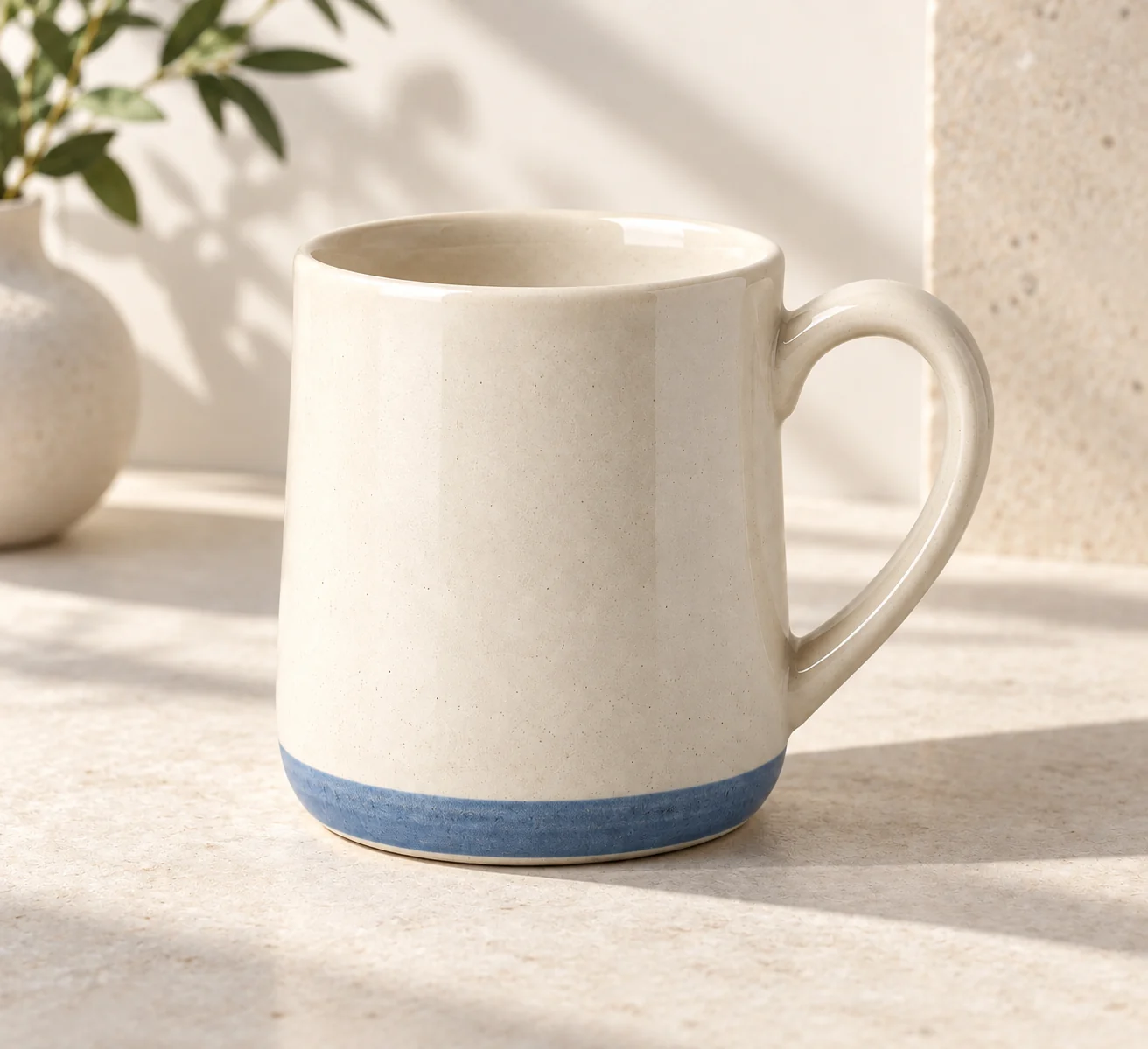
The mug example moves a cream-and-blue product into a sunlit setting. The setting adds context, but the handle, proportions and colored band still need to match the product being shown.
Choose a setting that fits the object
- Bright modern kitchen
- Useful for showing an object on a familiar work surface.
- Sunlit minimalist studio
- A restrained setting keeps attention on the product.
- Outdoor cafe table
- A lifestyle setting adds outdoor light and table context.
- Marble bathroom shelf
- A bathroom setting gives toiletries a different presentation.
Prepare an accurate product reference
Include the complete shape
Do not crop handles, caps or edges you need the result to preserve.
Choose one scene
Select the context in the Scene menu; the studio is the default.
Check before using a product listing image
- Compare labels, proportions and distinctive colors.
- Inspect reflections and shadows where the product touches the surface.
- Do not represent invented features as part of the real item.
Creating a believable product scene
What product photo should I upload?
Use one clearly visible product with its full shape inside the frame. Choose a studio, kitchen, café or bathroom scene; simple backgrounds make it easier to describe what should change.
Will the label and shape stay exactly the same?
The template asks the model to preserve the product, but labels and small details can change. Review the result before using it in a product listing.
Can I generate all four scenes in one request?
This preset uses one selected scene per generation. Change the selection for another setting.
Does opening a template spend credits?
No. You only use credits when you generate an image. The Generate button shows the cost.