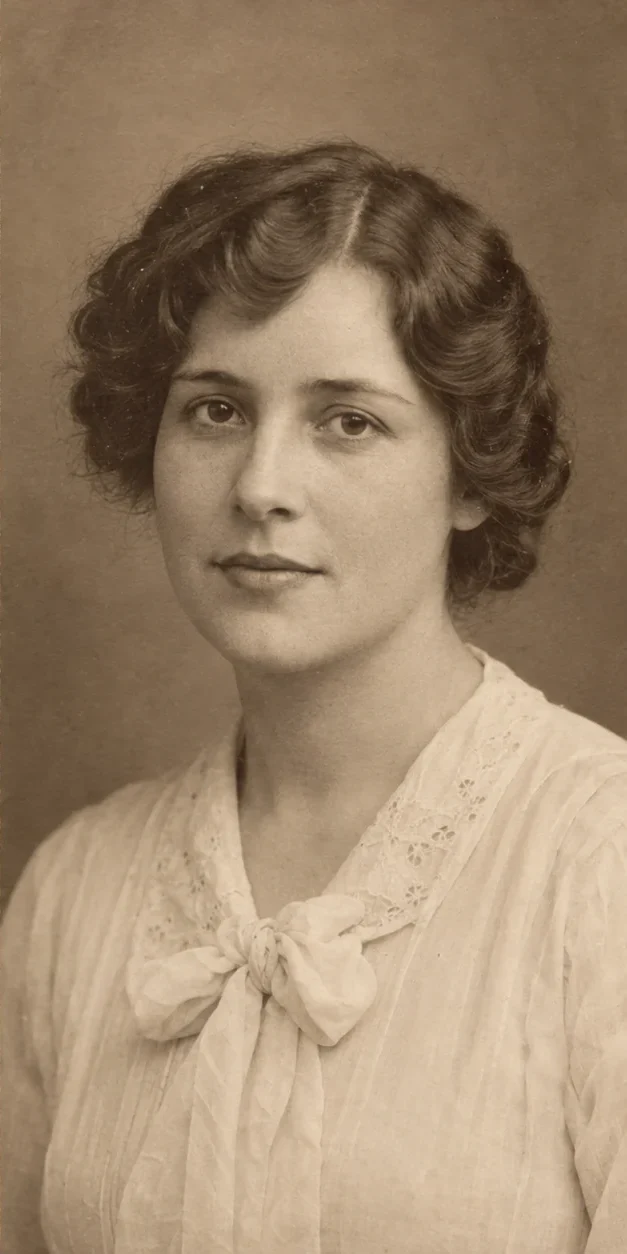
Unblur an Image
Sharpen blurry photos and compare the result with the original.
Unblur image
Example

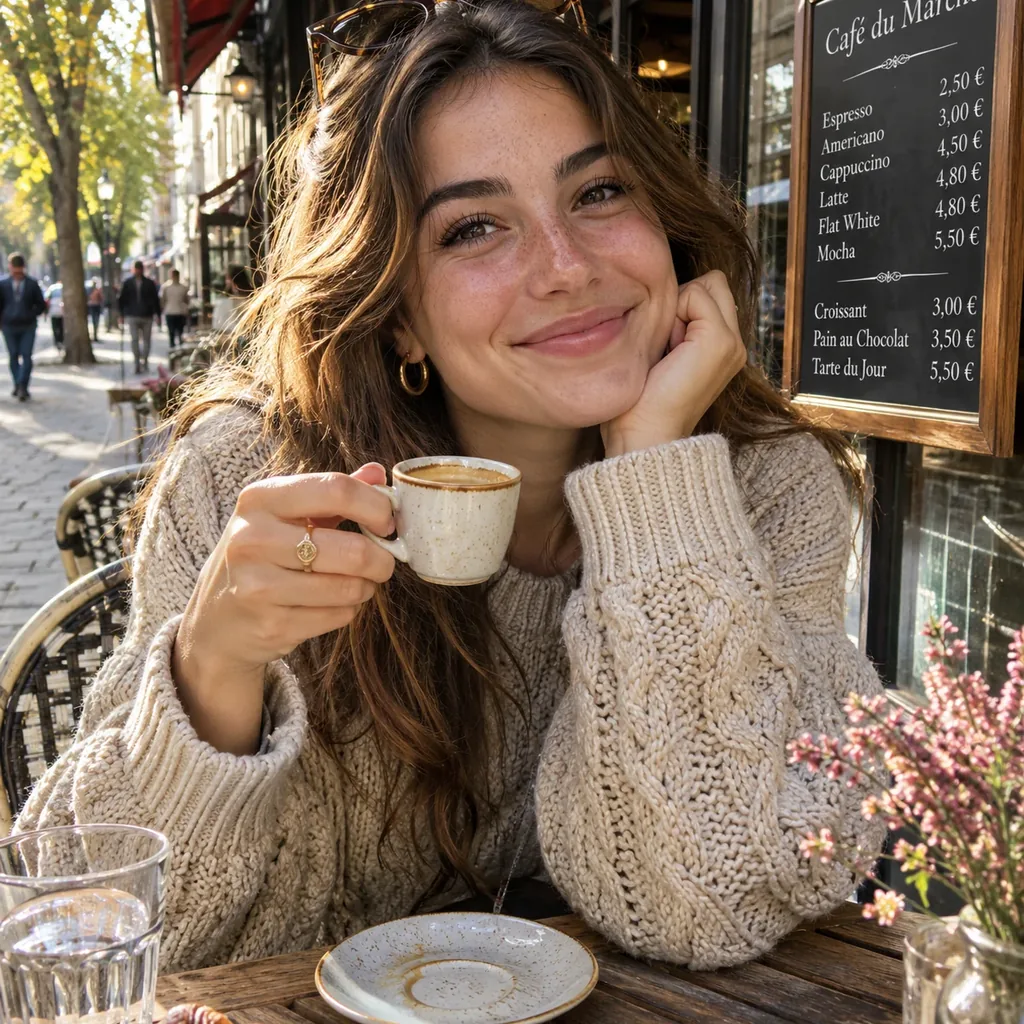
What Causes a Blurry Photo?
Camera shake leaves streaks, missed focus softens edges, and heavy JPEG compression adds blocks or halos. Unblur Image uses photo restoration to improve the appearance of details still visible in the source.
When to Try Unblur Image
- Motion blur
- Try it when a small camera movement softened an otherwise sharp subject. Strong streaks or doubled edges are harder to improve.
- Missed focus
- On a slightly soft portrait, compare the eyes, hairline and expression. A sharper face can still have altered features.
- Compression artifacts
- Try the least compressed copy. On signs and labels, check each character rather than relying on sharper-looking edges.
How to Unblur an Image
- 1
Upload the original
Choose a PNG, JPG or WebP up to 4 MB.
- 2
Unblur the image
Review the 18-credit price and run the tool. No prompt is needed.
- 3
Compare and download
Open Compare and move the slider to check the same area in both versions. Switch back to Result to download the PNG.
Choose a Better Source
Skip screenshots and resaves
Use the file straight from the camera or export if you have it. Avoid filters that crank up sharpness or hide fine texture.
Check what is still visible
Look for readable portions of letters or visible facial features. Detail that is entirely absent cannot be reliably recovered.
What to Check Before Using the Result
- Check eyes, facial outlines and other recognizable features.
- Compare letters and numbers one by one, especially on small labels.
- Look for halos or doubled edges around high-contrast shapes.
Questions About This Tool
Can I fix motion blur or missed focus?
Mild blur is the best starting point. Heavy movement or badly missed focus may leave too little detail to improve.
Can it read blurry text?
It is not a text reader. Visible letters can look clearer, but the model can change or guess characters.
Should I unblur or upscale?
Unblur first if the image looks soft. Use Upscale when you need more pixels for a larger display or print.
When should I use Unblur Image vs Restore Photo?
Start with Unblur Image for soft focus, mild camera shake, or compression haze. Use Restore Photo when a vintage scan has scratches, creases, or color fading.
Which Files Can I Upload?
You can upload PNG, JPG, or WebP files up to 4MB and 40 megapixels. Transparent PNGs are fully supported, and files are processed at their uploaded resolution without pre-compression downscaling.
When Are Credits Deducted, and What Happens If Processing Fails?
Credits are only deducted when you click the action button to process the image. Adjusting sliders, uploading, or previewing settings never costs credits. If a task encounters a server error or timeout, your credits are refunded immediately and automatically.
Can I Use Tool Outputs in Other Editors or for Video Generation?
Yes. Any processed cutout, upscaled image, or restored photo can be opened directly in Image Editing, added as a reference in Multi-Reference generation, or sent to our AI Video studio as a starting frame.