Bicep Heart AI Video Generator
Turn one portrait into a 15-second Bicep Heart video. Flex one arm, curl the other hand into a heart and hold the pose. Choose portrait or landscape framing.
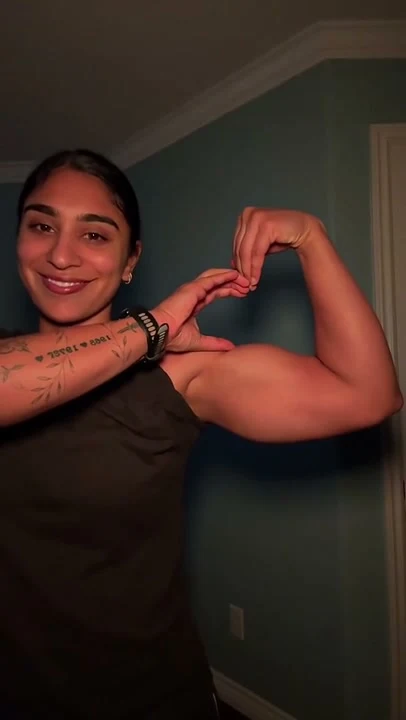
Turn one portrait into a 15-second Bicep Heart video. Flex one arm, curl the other hand into a heart and hold the pose. Choose portrait or landscape framing.
From a Relaxed Smile to the Bicep Heart
This Bicep Heart video template turns one adult portrait into a short arm-heart performance. The person raises one arm into a relaxed flex, curls the opposite hand toward the fist and bicep, then holds the small heart beside the shoulder. The focus is a readable gesture and a familiar face, not bigger muscles or a change of identity.
The Scene, from Opening to Ending
- 01
Set the Scene
Face the camera with relaxed shoulders and lift one arm into a comfortable flex, keeping the fist beside the head.
- 02
Build the Moment
Bring the opposite hand across the chest and curl the fingers toward the fist, with the thumb against the inner bicep, to close a small heart.
- 03
Resolve the Story
Make a small wrist adjustment, smile and hold the completed heart with the face and both arms still in view.
Choose Photos for This Scene
Photo Setup
Upload one clear adult portrait, ideally framed from head to waist with the face, both shoulders, elbows and hands visible. No second person or motion-reference upload is needed.
Photo Requirements
Leave room around the arms and avoid crossed arms, objects across the chest or sleeves hiding the hands. A neutral starting pose works; if the photo already shows a heart, the script requests a small settling motion and hold.
Before You Generate
- Check the upload labels: reference photos define identities, not start and end frames.
- Choose portrait for a vertical post or landscape for a wider scene. The source photo does not lock the output framing.
- The script, duration and resolution are preset. Generate only after checking the credit cost.
How to Make a Bicep Heart Video
- 1
Choose Your References
Follow the role labels and upload the required photos. Select one or two photos where the template offers both options.
- 2
Confirm the Format
Choose portrait or landscape. The template supplies the scene script, 15-second duration and 768P resolution; the credit cost appears before submission.
- 3
Generate and Review
Create the video, check identities and motion, then play or download the MP4. Completed videos also appear in My Creations.
Questions About This Video Template
Do I Need a Video or Two Photos?
No. This template uses one adult portrait as an identity reference. The prepared script supplies the arm movement; there is no second photo, uploaded dance clip or custom motion-control input.
Is This an Exact Copy of a Trend Clip?
No. MiniMax H3 generates the gesture from a prepared script, not an uploaded motion-reference video. Hand placement, motion and sound can vary. The preview is a pose reference; the generated video is 15 seconds at 768P.
Is This Video Template Free?
Video generation requires sign-in and credits. See Video templates on the Pricing page for the preset cost. Image trial allowances do not make this video free.
What Can I Edit, and Will Every Result Be Identical?
You can choose the reference photos, the supported photo setup and the output orientation. The script and video settings are fixed. Faces, timing, motion and sound are generated and can vary.
What Happens If Generation Fails?
Confirmed generation failures follow the site's credit-refund flow. A connection interruption is not proof of failure: retry the same request or check My Creations. Closing the page does not cancel a submitted task.
Try a Different Scene
All video templates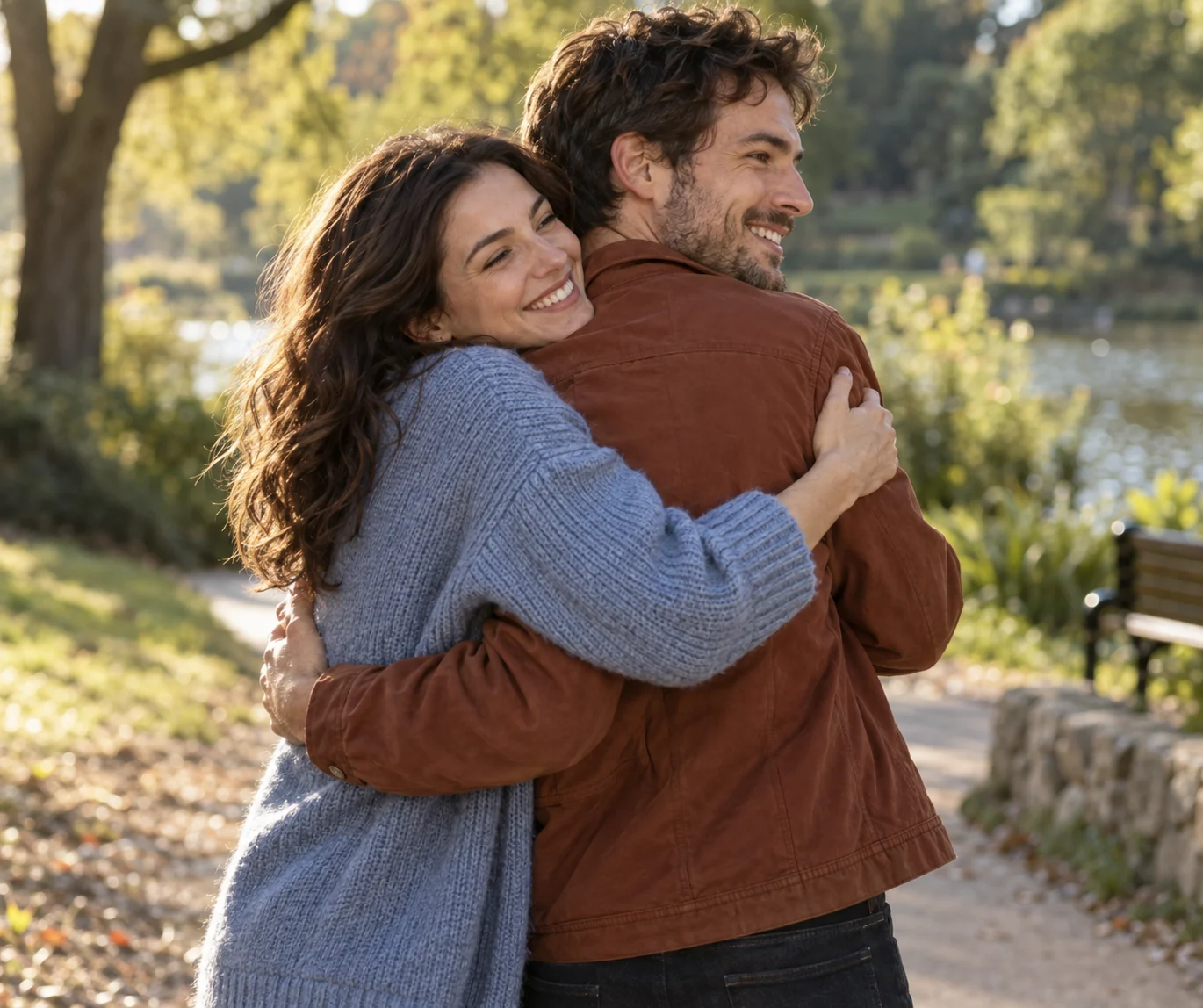
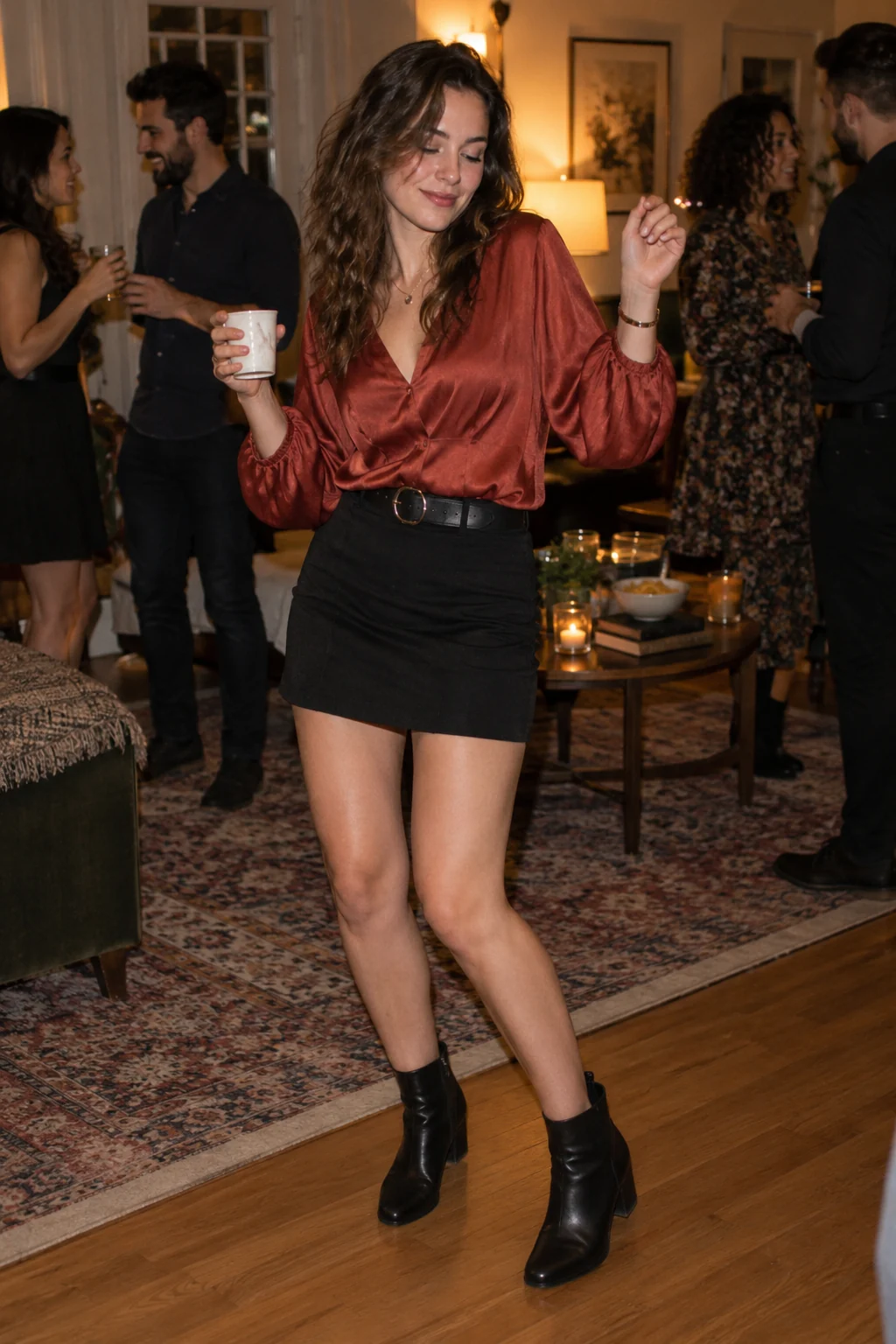
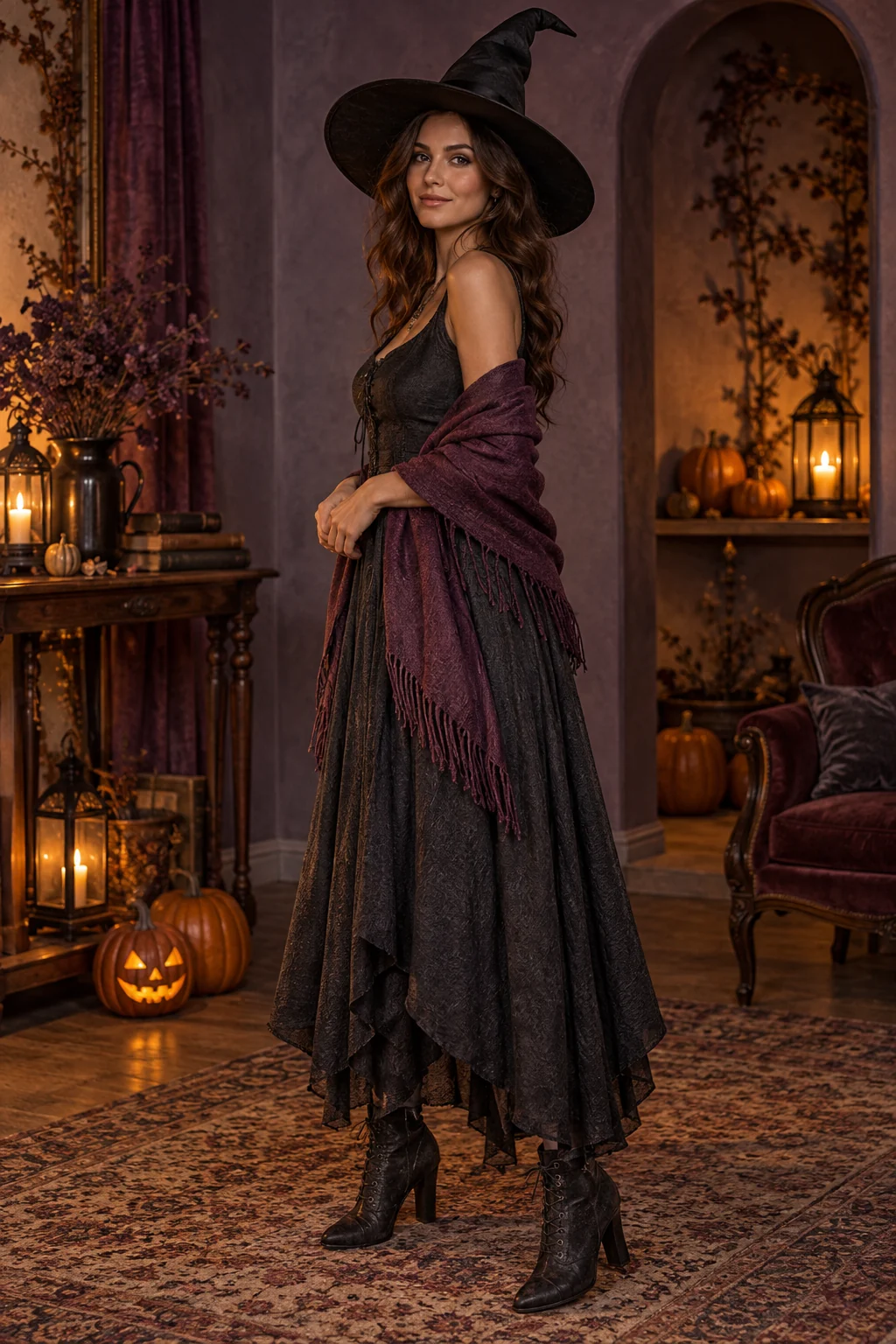
Ready to Put Your Photos in the Scene?
Choose the references above and review the credit cost before creating your video.